When you’re preparing to move, you can find yourself faced with a lot of paper documents. Holiday cards, leases, letters, tax documents, notes, doodles – whatever – can really stack up over time. If your choices are only “keep” or “trash,” it can be hard to let go, even if you choose one of the more responsible ways to get rid of your stuff. Digitization makes these decisions easier by adding a third option: create a virtual version for safekeeping and say goodbye to the physical paper.
These days, digitization only requires a smartphone or a tablet, but you’ll want to optimize the process while reducing the risk of data loss.
Decide what to do with your papers
In my experience – and I’ve been digitizing boxes upon boxes of documents for the past six months – there are only a few types of records worth keeping on hand after creating a digital version. These are original government documents, legal agreements such as a will or a current lease, items that might lose their form or meaning when reduced to images on a screen, and anything you may want to display in your home.
Of course, there will be exceptions. Maybe you decide to toss every birthday card but keep the one your grandmother sent before she died. Or maybe you just feel better retaining hard copies of every tax document, even though the IRS says it’s generally okay to scrap them after three years. You do you.
What you’ll need to start
After you’ve decided your documents’ fate, you can get to work. At minimum, you’ll need a mobile device and a flat, clean surface like a tabletop. While that’s technically enough to do the job, I recommend also having a computer, a way to transfer files between your devices (like a cable, AirDrop, or cloud storage), image editing software, and at least one backup drive.
If you have a truly overwhelming stack of papers, you may want to consider buying or borrowing a scanner to help. A scanner that comes with a feeder can quickly scan a bunch of documents at once rather than doing one at a time, and most scanners can save images directly to your computer or to your cloud storage. Home scanners that are meant mostly for documents can run about $100 to $500, depending on their features and capacity. Scanners that handle high-quality images may cost considerably more.
Personally, having used scanners in domestic, professional, and academic settings, I think they’re great for archival work, but are overkill for most people’s digitization needs. I’ve used my phone for my own digitization project and have no regrets.

Digitizing with your phone camera
There are three easy ways to capture a digital image of any paper using your phone: with your camera app, a built-in scanning app, or a third-party scanning app. I use whatever is most appropriate, depending on what my plans are for the digitized copy.
While you’re likely most familiar with your camera app, it’s not great for text documents and particularly cumbersome for multi-page ones. That said, I like to use my usual camera app for cards and art because it creates editable image files that I can organize with tags.
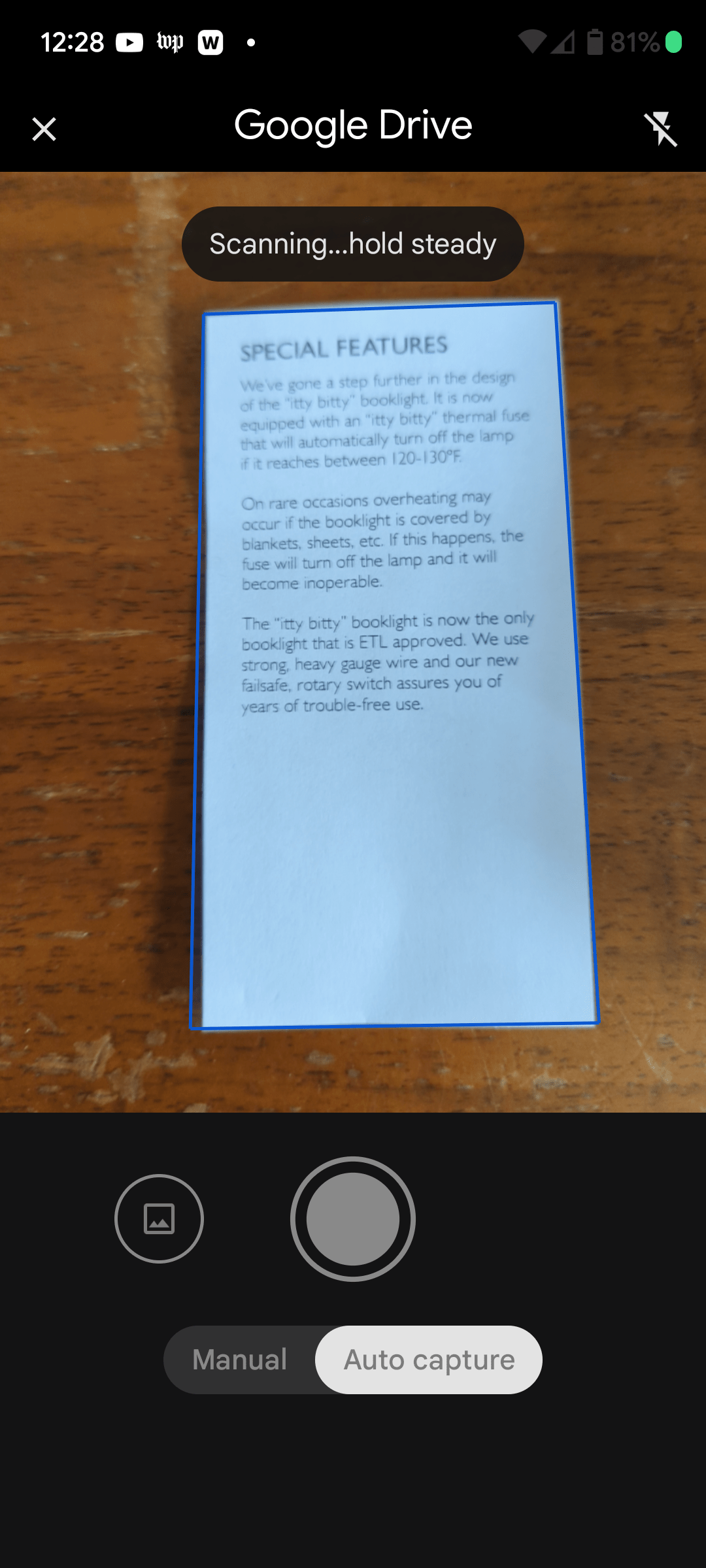
Scanning apps, meanwhile, usually only output PDFs. I use this method for text-heavy documents like leases and financial records. Both iOS and Android include built-in scanning tools that are quite capable of turning any document into a PDF. On an Android phone, you use the Drive app; with an iPhone, you can use either the Files or the Notes app. All of these allow you to simply hold your phone over the paper and wait; the app outlines the page and automatically creates a file.
There are also a number of third-party apps that offer additional features for capturing, editing, and storing PDFs. If you want more options than Drive, Notes, or Files can provide, it may be useful to check out what’s out there.
Best way to digitize images
Lay your document flat in a well-lit space with no shadows. Weight it down if necessary, but try not to block anything important.
An encyclopedic knowledge of camera angles won’t matter here. Hold your phone flat and level over your document, without casting shadows onto the page. I also recommend cropping your pics immediately to save time and make the images easier to see in previews when you’re organizing. If you’re capturing cards, you can photograph the cover and interior separately, then use image editing software to combine them into a single file.
If you’ve built a repository of digitized documents on your phone and are thinking of leaving them there — don’t. That’s like stashing your birth certificate in a folder at an open window and trusting it won’t blow away. To mitigate risk, transfer your digitized documents to a computer, a backup drive, and / or cloud storage. Despite advancements in storage technology, data loss still happens, and it’s safer to keep your important files in at least two locations in case something happens to one of them.
If you use Google Drive to scan your documents, you’ve already automatically backed them up to the cloud. To send those documents to another device that doesn’t have access to your Google Drive, you can download them using Google Takeout.
If you use Files or Notes on iOS, you can check to make sure that your files are being backed up to iCloud by going to Settings > [your name] > iCloud. If you’re using Files and want to send those files elsewhere, tap the three dots in the top right, hit Select, pick the files you want to transfer, and touch the share icon in the bottom left (a box with an upward-pointing arrow). If you use Notes, tap the note you want to transfer and select Share Note. Then choose your preferred sharing method and ship ‘em out.
No matter where your files are — a computer, mobile device, or cloud storage — you really should organize them so you can find them later. If you have a system that works for you already, great. But if you need a strategy, I recommend creating top-level folders like “cards” and “records” that describe the broadest categories within your collection. Within these, make more specific folders, like “leases” and “identification.” When you get to the bottom-level folders where the actual files live, try to name them consistently. If you really want to go hard, you can add tags and other metadata to your files.
It’s important to understand that the goal here is not to completely eliminate anything that could be considered clutter — it’s to find an efficient solution to managing the items we accumulate as we live our lives. It’s okay to hold onto meaningful items and make a measured assessment of their value from time to time. After all, drowning in a sea of paperwork might be bad, but living a life devoid of meaning and mementos might be even worse.
[Notigroup Newsroom in collaboration with other media outlets, with information from the following sources]