In 2016, Apple started including an auto power-on feature for its new MacBook models that activated when you opened the notebook lid or plugged in USB-C power when the lid was open. This is a cool little convenience if you don’t want the added step of pressing the power button — plus it could get the computer running if, for some reason, that button stops working.
But what if you open the lid just to clean the screen or are troubleshooting the computer for some other issue? Or perhaps you are building a slabtop and don’t want it to power on just because you plugged it into power? Or what if you don’t want to automate everything? In these cases, auto power-on is either a minor inconvenience or a straight-up annoyance.
The first MacBooks to get this feature had Intel processors, and it continued over to every new model, including when Apple switched to its own Apple Silicon M-series processors. There’s a Terminal command for the Intel MacBooks that can be used to disable open lid power-on, but when Apple launched the M1 MacBook Air in 2020, that command no longer worked. However, in January 2025, Apple finally added an official way to disable autoboot upon opening the lid of M1 and newer MacBooks.
Here’s how to disable auto power-on when opening the lid of either type of Mac.
Disable auto power-on on an Apple Silicon M-series MacBook
You’d think Apple would just add a simple “enable power on when opening lid” toggle in System Settings, but that would be too easy. Instead, you’ll have to do a bit of work under the hood of your macOS software by way of a special Terminal command that Apple has sanctioned.
The command, according to Apple, will work on all Apple Silicon models running macOS 15 Sequoia. However, we’ve also successfully tested it on macOS 14.7 Sonoma. For reference, these instructions are for newer models like the 2020 M1 MacBook Air and the 2024 14-inch and 16-inch MacBook Pro models with M4 Pro and M4 Max chips.
Here’s how to disable autoboot when opening the lid and / or plugging in power while the lid is open on your Apple Silicon M-series MacBook:
- Log in to your MacBook using an admin account (if you’re the only user, you are likely the admin already).
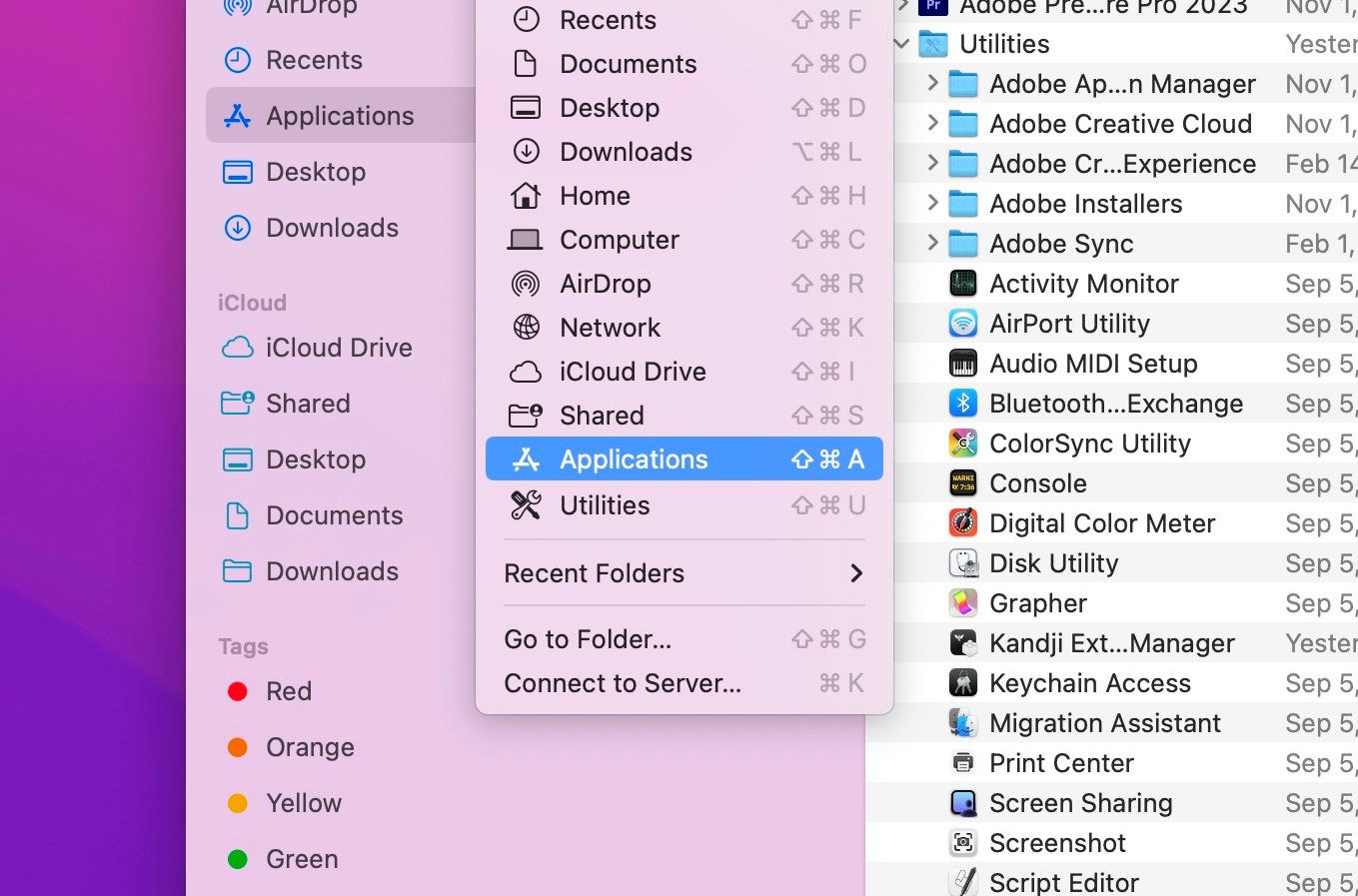
- Open up the Terminal application from the Applications > Utilities folder. You can get there from Finder by going to the Go menu on the toolbar and selecting Applications.
- In Terminal, copy and paste ONE of the following commands, depending on what you’d like, and then press Return:
- If you want to disable autoboot when you open the lid or when you plug in a charger while the lid is open:
- sudo nvram BootPreference=%00
- If you want to disable autoboot ONLY when you open the lid:
- sudo nvram BootPreference=%01
- If you want to disable autoboot ONLY when you plug in a charger:
- sudo nvram BootPreference=%02
- Terminal will then ask you for an admin password. Enter your user password (it won’t show you’re typing). Then press Return.

Now you can shut down the computer, close the lid, and test if it works.
To revert your settings back to the defaults, follow the steps above but enter this command instead:
- sudo nvram -d BootPreference
Disable auto power-on on an Intel MacBook
Are you still rocking a 2016 or newer Intel-based MacBook? If it’s still working and doing what you need it to do, that’s great! But if the darn autoboot is bothering you — say, if you’re experimenting with building a headless or slabtop MacBook — this Terminal command can fix that.
Here’s how to disable autoboot when opening the lid or plugging in power while the lid is open on your Intel-based MacBook:
- Log in to your MacBook using an admin account (if you’re the only user, you are likely the admin already).
- Open up the Terminal application from the Applications > Utilities folder. You can get there from Finder by going to the Go menu on the toolbar and selecting Applications.
- In Terminal, copy and paste the following command into the window and then press Return:
- sudo nvram AutoBoot=%00
- Terminal will then ask you for an admin password. Enter your user password (it won’t show you’re typing). Then press Return.
Now, you can shut down the computer, close the lid, and test if it works.
To undo your setting back to default, follow the steps above until you get to the Terminal but enter this command instead:
Enjoy the lack of autoboot!
[Notigroup Newsroom in collaboration with other media outlets, with information from the following sources]