Noti.Group RSS Feed
  • Contact Us
Sunday, June 28, 2026
Noti Group Logo
  • Home
  • World News
  • Business
  • Health
  • Sports
  • Entertainment
No Result
View All Result
  • Home
  • World News
  • Business
  • Health
  • Sports
  • Entertainment
No Result
View All Result
Noti Group
No Result
View All Result
ADVERTISEMENT

How to hide files and folders on macOS

in General News
Reading Time: 10 mins read
407 4
A A
0
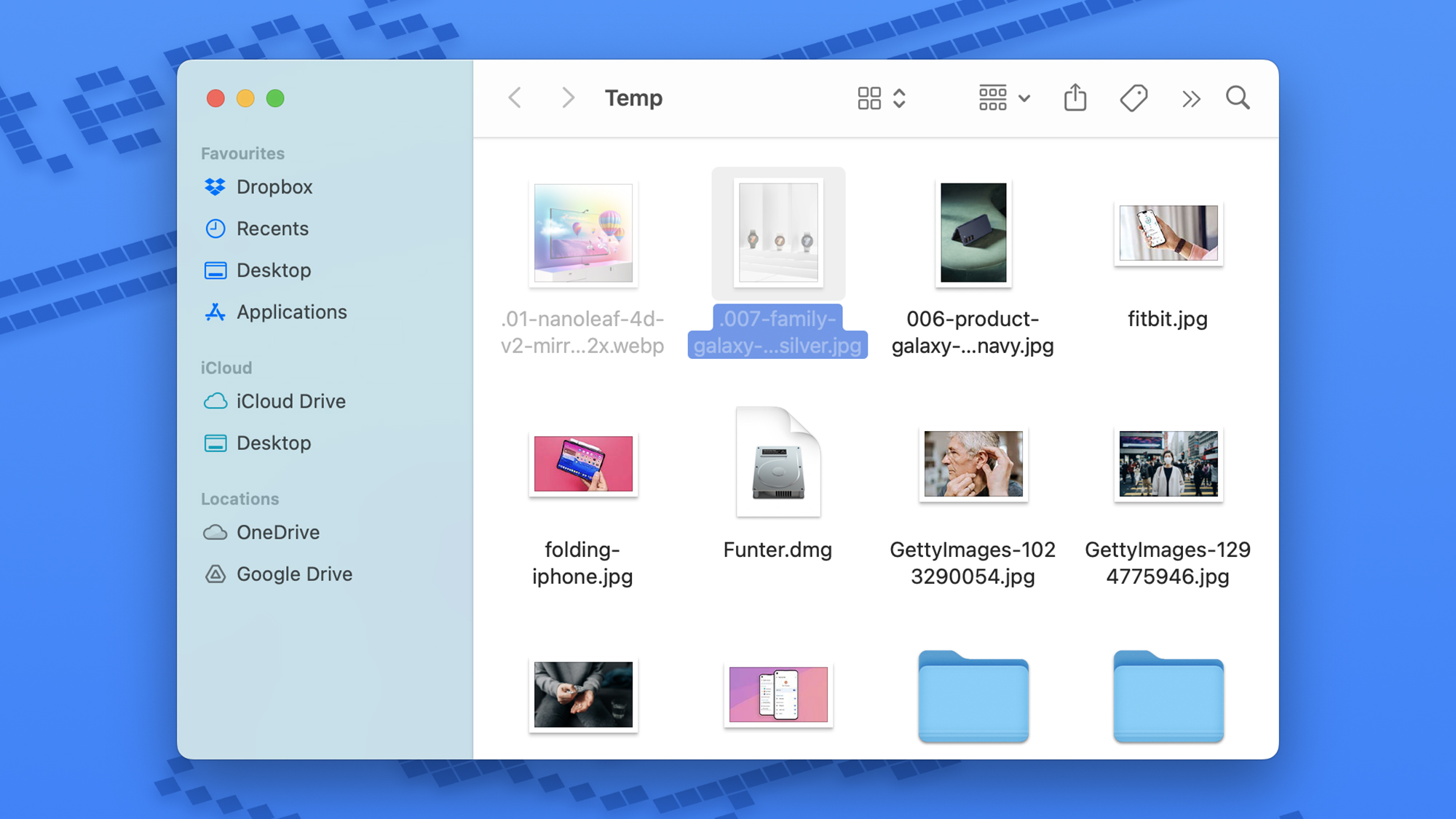
Finder showing Temp folder with some of the icons translucent.
137
SHARES
6.9k
VIEWS
ShareShareShareShareShare

When you set up a new Mac, you’re instructed to keep it locked down with a password, a Touch ID, and / or an Apple Watch authorization. But you can’t guarantee that your macOS system will only be seen by you and you alone. Maybe your kids want to borrow your MacBook to play a game or you want to show a friend the photos and videos of your latest trip. How do you prevent them from accidentally opening folders or files that you want to keep private?

These scenarios are where hidden files and folders come into play. They won’t show up in Finder during regular system browsing — and with the help of a third-party program, you can lock them away behind a password, too.

Hidden files appear translucent in Finder.
Screenshot: Apple

There are a few ways to hide files and folders using tools that come with macOS. But before you do any of these, you want to be able to see any currently hidden files. Press Shift+Cmd+. (period) in Finder. Any hidden folder and file names will show up as faded but visible.

Then, to hide any other folder or file, you can simply add a period to the start of its name:

  • In Finder, select the file or folder you want hidden.
  • Click on the file or folder name to edit it.
  • Add a period to the start of the name.
  • Press Enter and then Use Dot to confirm.

Like other hidden files, the renamed file or folder will appear faded but still be visible. To hide them all, press Shift+Cmd+. on the keyboard again.

To unhide them, you just need to rename the files and folders again without the period, though you will need to restart Finder to see the difference. Open up the Terminal utility, enter “killall Finder,” and then hit Enter.

Mac screen showing the terminal window with code on it.

You can use the Terminal to show or hide files.
Screenshot: Apple

You can also hide and unhide files and folders through the Terminal interface if you don’t want to rename them with periods. You can launch Terminal by searching for it in Spotlight (Cmd+Space) or through the Utilities folder in Applications in Finder.

  • Enter chflags hidden followed by a space.
  • Drag a file or folder from Finder to the Terminal window, and hit Enter.
  • Type killall Finder then tap Enter to restart Finder.

To unhide a file, repeat the steps with the chflags nohidden command. You may need the Shift+Cmd+. shortcut to make the file or folder visible so you can drag it across.

This is relatively quick and easy, but not all that secure — anyone who knows the Shift+Cmd+. shortcut can see your hidden files. If you need a more comprehensive file-hiding option, you’ll need to turn to a third-party tool.

Using third-party software

Funter is free and really well-designed, but it essentially just does the same job as the Terminal and Finder keyboard shortcuts, albeit in a nicer interface that’s conveniently close to hand. It lives up in the menu bar at the top of the macOS interface, and you can use it to show or conceal hidden files via a simple toggle switch. You can also search for hidden files, which can come in handy if you’ve hidden files away and forgotten where on your system you’ve put them.

Mac screen showing Encrypto window with a picture of a folder and the words “Hide me.”

Encrypto offers a drag-and-drop approach to hiding and locking files and folders.
Screenshot: Encrypto

If you want to lock certain files and folders away on macOS, so they can’t be seen without a password, then Encrypto is the best option I’ve come across. It’s free to install and use, and it couldn’t be much more straightforward:

  • Launch the Encrypto app.
  • Drag across a file or folder you want to hide (or choose File > Open).
  • Specify a password to protect the selected data.
  • Click Encrypt.

You’ll then get a second encrypted file — with the folder or files locked away inside it — which you can save anywhere you like on your system. Encrypto also includes easy sharing options if you need to send these files or folders to someone else.

To bring back the data you’ve locked away, double-click the encrypted file you’ve created. You’ll be prompted for the password, which then decrypts the hidden files, and lets you save them wherever you want again.

For extra privacy, you could create an encrypted locker of files with Encrypto, then hide it using the options built into Finder or Terminal. Even if someone should come across the hidden package, they won’t be able to get into it without the password.

[Notigroup Newsroom in collaboration with other media outlets, with information from the following sources]


Tags: appleHow tomacOSTech
Previous Post

Amazfit Active 2 review: outsized bang for your buck

Next Post

NYC residential conversion of old printing house into boutique ‘lofts’ shows size doesn’t matter

Related Posts

Teenage Engineering adds lo-fi mode, USB audio, and more to its KO II sampler
Technology

Teenage Engineering adds lo-fi mode, USB audio, and more to its KO II sampler

June 27, 2026
RAM price hikes: the latest on the global memory shortage
Technology

Apple wants permission to buy memory from a blacklisted Chinese supplier

June 27, 2026
Terrence O'Brien
Technology

Why is Apple asking me to pay more for Big Tech’s AI obsession?

June 27, 2026
A panel at Unify hosted by Jennifer Pattison Tuohy featuring representatives from Google, Samsung, Homey/LG, and CableLabs. Here, Daniel Moneta of Samsung answers a question about Samsung appliances not being part of Matter, saying they are focused on offering a great first-party experience through SmartThings.
Technology

Inside the room where the smart home industry is still betting on Matter

June 27, 2026
Load More
Next Post
NYC residential conversion of old printing house into boutique 'lofts' shows size doesn't matter

NYC residential conversion of old printing house into boutique 'lofts' shows size doesn't matter

No Result
View All Result

Recent Posts

  • WWE Night of Champions review, grade: Sami Zayn finally win world title
  • Ben Rice’s ugly stretch hits low point in loss to Red Sox
  • Mets snap losing streak as Andy Green picks up first win as interim manager
  • There’s an unorthodox test the Mets should try in their manager search
  • Fantasy managers shouldn’t hesitate on Hunter Greene’s high-upside return

Recent Comments

  • Stefano on The Last Byzantine Medieval Town on Earth Is Being Destroyed, and It’s Too Late
  • Van Hens on The Last Byzantine Medieval Town on Earth Is Being Destroyed, and It’s Too Late
  • Ioannis K on The Last Byzantine Medieval Town on Earth Is Being Destroyed, and It’s Too Late
  • Panagiotis Nikolaos on The Last Byzantine Medieval Town on Earth Is Being Destroyed, and It’s Too Late
  • John Miele on UK government suggests deleting files to save water

Noti Group All rights reserved

No Result
View All Result
Noti Group

What’s New Here

  • WWE Night of Champions review, grade: Sami Zayn finally win world title
  • Ben Rice’s ugly stretch hits low point in loss to Red Sox
  • Mets snap losing streak as Andy Green picks up first win as interim manager

Topics to Cover!

  • Business (5,086)
  • Entertainment (2,118)
  • General News (326)
  • Health (327)
  • Investigative Journalism (12)
  • Lifestyle (4)
  • Sports (12,341)
  • Technology (7,621)
  • World News (1,336)
  • Contact Us
  • Terms and Conditions
  • Privacy Policy
  • RSS
  • Contact News Room
  • Code of Conduct
  • Careers
  • Values
  • Advertise
  • DMCA

© 2025 - noti.group - All rights reserved - noti.group runs on 100% green energy.

Welcome Back!

Login to your account below

Forgotten Password?

Retrieve your password

Please enter your username or email address to reset your password.

Log In
No Result
View All Result
  • Home
  • World News
  • Business
  • Health
  • Sports
  • Entertainment

© 2025 - noti.group - All rights reserved - noti.group runs on 100% green energy.