While your Windows computer should be pretty well locked down with a password or maybe even some kind of biometric protection, it’s impossible to guarantee that no one else is ever going to get access to it, whether it’s a thief swiping your unlocked laptop from a coffee shop or one of your kids wanting to play a few games while you’re doing something else.
Whatever the reason, knowing how to hide files and folders from view can be really useful. These files won’t pop up during normal file browsing, and they’ll be difficult to find even if someone is specifically looking for them.
And you’ve got a choice of ways to go about it, ranging from features built into File Explorer to third-party options.
Using Windows File Explorer
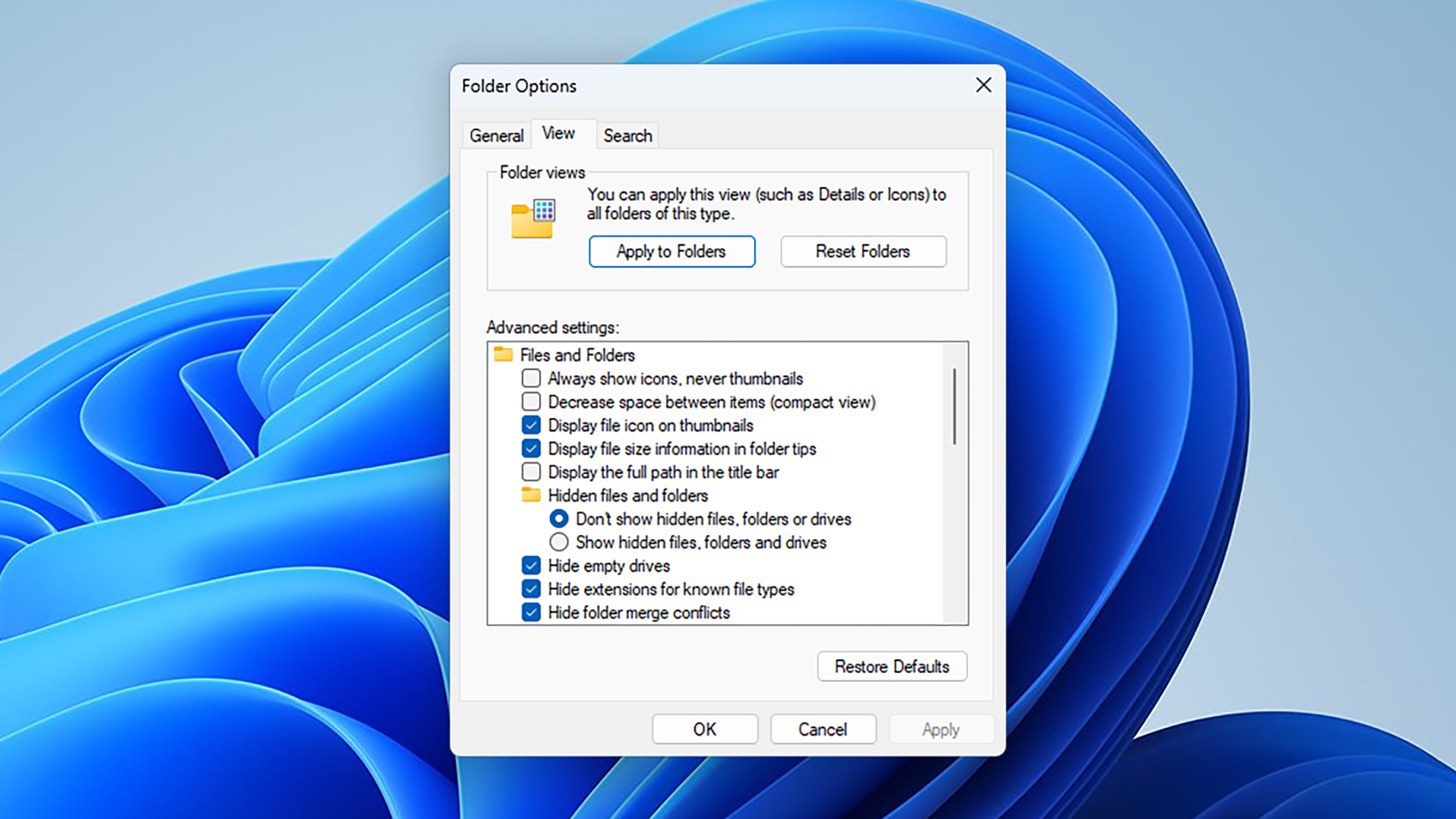
By default, Windows File Explorer hides certain files and folders from view. Typically, these are important system files, which shouldn’t be accessed or edited. You can see these files and folders if you want to:
- From any File Explorer window, click the three dots in the top toolbar.
- Click Options on the menu that pops up.
- On the View tab, enable Show hidden files, folders and drives.
- Click OK to confirm.
To hide any of your own files or folders:
- Right-click on the file or folder.
- Choose Properties from the context menu.
- On the General tab, check the Hidden box.
- Click OK to confirm.
As long as File Explorer is configured to not show hidden files and folders, the items you’ve selected won’t be visible. This applies wherever File Explorer is used — so in dialogs for opening files inside applications, for example.
It’s a quick and easy way of protecting files and folders you don’t want to be seen, but it’s hardly the most secure — anyone who knows their way around File Explorer will be able to get it to show hidden files again. If you need something more comprehensive, you’ll have to turn to a third-party tool.

There are several third-party tools to pick from here, which don’t so much hide your files and folders as lock them from view. If someone accesses your Windows system, they’ll be able to see that something is hidden, but they’re not going to be able to get at whatever you’ve locked away.
The best option I’ve used personally is Folder Lock. It’s straightforward and reliable, and while there is a Pro version you can get for $39.95, the free version will be enough for most people. You get 1GB of space inside your locker, and you can keep it synced between two devices.
During the setup process, you’ll be asked where you want to store your locker. It’s a good idea to have it buried deep in some subfolders rather than sitting somewhere prominent like the desktop. You also need to specify an email address and password for gaining access to your digital locker.
If Folder Lock isn’t running, your locker won’t be visible in File Explorer. To add files to your locker and see what you’ve stored in it, launch the app from the Start menu and log in. By default, your locker automatically opens in File Explorer (in settings, you can change it so it’s sitting on your homescreen instead if you want):
- Drag files and folders into your locker folder to hide them.
- Double-click on locked files and folders to open them.
- To hide everything, click Lock on the Folder Lock panel.
Whenever your locker is open, it works like any other folder in Windows. You can delete files, duplicate files, and copy and paste them in the normal way. As soon as you lock it or close Folder Lock, they vanish from view.
The program also includes a Secrets section, where you can store passwords, notes, and credit card information, and a Safeguard feature for securely shredding digital files (overwriting them with random data, essentially).
Everything is encrypted using AES 256-bit encryption and you can back up your locker to a cloud storage service (such as OneDrive, Google Drive, or Dropbox) for extra peace of mind.
[Notigroup Newsroom in collaboration with other media outlets, with information from the following sources]