There are probably a lot of simple tasks you do repeatedly on your phone, like muting it in a meeting, reducing the screen brightness late at night, or turning on the battery saver when you leave for work. If you have a Samsung Galaxy phone, then you have access to a Routines tool that can automate a lot of these for you.
Each Routine comes with a trigger and an action to carry out in response. Triggers cover times, locations, and phone states (like Do Not Disturb and low battery), while the actions cover most of the phone settings (including notifications, display settings, and Bluetooth) and can also launch apps or specific functions (like making your phone vibrate or turning on the flashlight).
There are lots of possibilities here. You can disable notifications while you’re using Samsung Health to exercise, mute your phone when you have a meeting, or bring up the weather forecast when you dismiss your morning alarm. You can also combine multiple triggers and actions, making the feature even more versatile. Routines can be launched manually, as well.
If you want inspiration, Samsung has provided some Routines you can use to get yourself started. From Settings, select Modes and Routines, then open the Discover tab.
If you’ve decided that you’d like to try creating your own, here’s how.
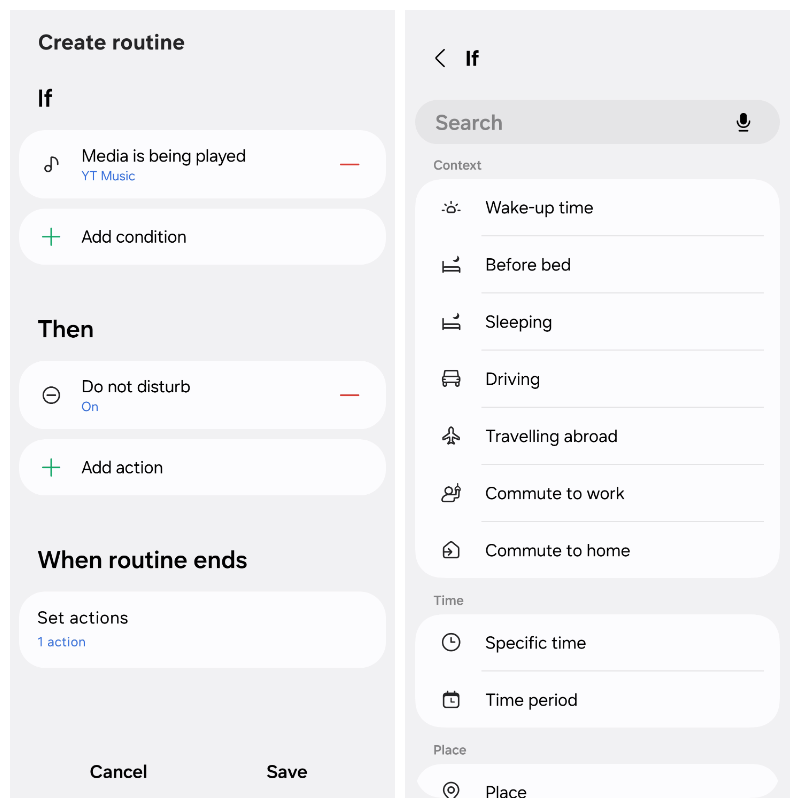
To create a new Routine, head to Settings on your Galaxy phone and tap on Modes and Routines, then switch to the Routines tab at the bottom.
- Tap the + (plus) button in the top right corner.
- Tap Add what will trigger this routine to choose your trigger. You can scroll through the options or use the search box at the top to look for something specific.
- Set the conditions for the trigger by choosing Add condition. Place, for example, lets you choose the location that acts as the trigger. You can also use this to get more control over the trigger — if you only want it to run when you have wired headphones connected, for instance, or when Wi-Fi is enabled. You can add more than one condition.
- Tap Add what this routine will do to pick the action that happens as a result of the trigger. Again, you can search for something specific or scroll through the options.
- You can also set the conditions for the action, if required. For example, if your action concerns the Display and you want the action to involve Brightness, you can specify the level of brightness that will be set.
- Tap Add action if you want to add more than one action. To change the order that actions are carried out in, tap and hold them to drag them into position.
- Tap Save to confirm the Routine.
- Give your new routine a name, an icon, and a color to identify it, then tap Done to store it.
When the criteria for a Routine are met, the actions are taken. If the conditions are already met when you save the Routine, then it will immediately start to run.

You can head back to the Modes and Routines screen at any time to view and modify your Routines. They’ll be grouped by ones that are active and ones that aren’t.
If the routine is running, you can cancel or stop it. Tap on Details to see all the settings for that routine. If it’s not running, then just tap on the routine to go to the Details screen.
At the bottom of the screen, you’ll find the Edit and Delete options.
If you tap on the three dots (bottom right), you can duplicate or disable a Routine (which stops it from running but doesn’t delete it). You can also block notifications for a specific Routine so it’ll run quietly in the background.
Back on the main Routines tab, you can tap the three dots (top right), then History to see recently run Routines. You can also go to Settings. There aren’t many settings to play around with, but you can choose the default notification options for new Routines and opt to have a Modes and Routines shortcut in your phone’s app drawer for easy access.
[Notigroup Newsroom in collaboration with other media outlets, with information from the following sources]