Noti.Group RSS Feed
  • Contact Us
Tuesday, April 7, 2026
Noti Group Logo
  • Home
  • World News
  • Business
  • Health
  • Sports
  • Entertainment
No Result
View All Result
  • Home
  • World News
  • Business
  • Health
  • Sports
  • Entertainment
No Result
View All Result
Noti Group
No Result
View All Result
ADVERTISEMENT

How to scan documents using your iPhone

in Technology
Reading Time: 13 mins read
382 29
A A
0
How to scan documents using your iPhone
137
SHARES
6.9k
VIEWS
ShareShareShareShareShare

Converting paper documents into digital formats means you’ve got backups of your paperwork should you ever need them. It can also help you clear out a substantial amount of clutter from your home or office — perhaps a whole filing cabinet’s worth.

It’s now easier than ever to scan documents using today’s phones — a large flatbed scanner is no longer needed as it was in the past. Receipts, business cards, bills, and any other kind of printed material can be stored digitally.

If you’ve got an iPhone, you can do this straight from the built-in Notes or Files apps. If those don’t quite give you the features you need, there are third-party alternatives that will do the job as well.

Scan documents with Notes or Files

When you scan with Files or Notes, the camera will automatically line the image up.
Screenshot: Apple

List of tools available in iCloud, including Scan Document.

Notes makes it simple to scan a document.
Screenshot: Apple

The process of scanning a document is similar in both Notes and Files. To get started in Notes, open or create a note, then tap the paperclip icon at the bottom, then Scan Documents. In Files, tap the three dots (top right), then Scan Documents.

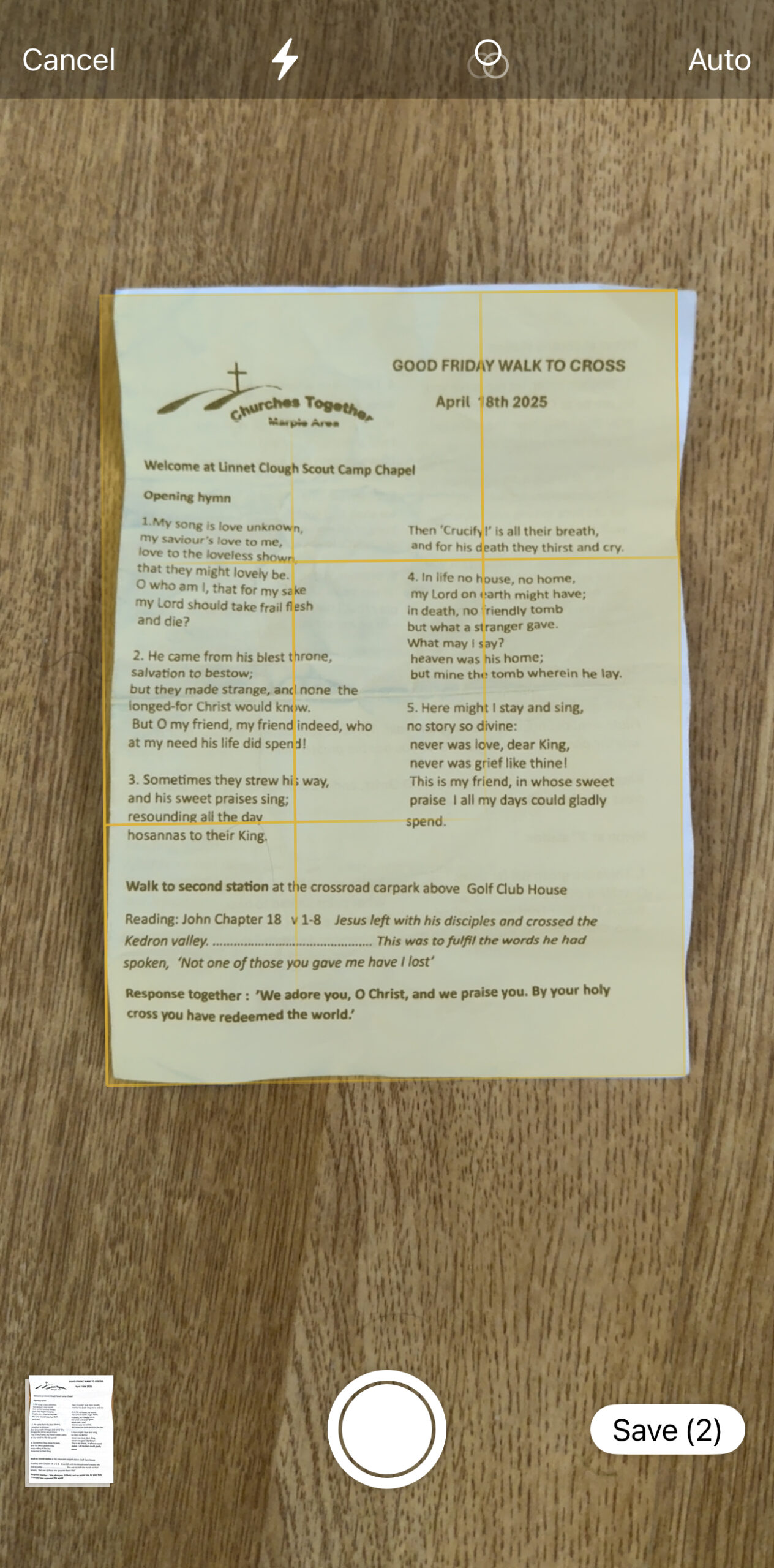
This gets you into the scanning interface. By default, you’ll be in auto mode — frame the document in the camera viewfinder, and when it’s lined up, a picture is automatically taken. Line up the next page, and after a moment, another capture is made.

Tap Auto (top right) to switch to manual mode, which lets you take each snap using the shutter button manually. The Auto button changes to read Manual, and you can tap it again to switch back to automatic mode.

You’ll see a couple of icons at the top. The lightning bolt lets you control the flash, while the three circles lets you switch between Color, Grayscale, Black & White, and Photo for the scanning mode.

When all the documents and pages have been captured, tap Save. In Notes, the pages you’ve scanned are then added to the current note, and in Files the pages are saved together as a PDF file (you may be asked where you want to save your file).

Scanning documents from a Mac

Screenshot of a mac showing a dropdown menu in Finder ending in a highlighted options Scan Documents.

You can scan documents via your iPhone in Mac apps such as Finder.
Screenshot: Apple

Apple’s Continuity suite of features includes a useful little trick that lets you scan documents from your Mac using an iPhone. As with other Continuity features, you must be signed in to the same Apple account on both devices for this to work, and both devices need to have Wi-Fi and Bluetooth turned on.

This works in Finder, Mail, Messages, Notes, Keynote, Numbers, Pages, and TextEdit on macOS. There are three options, depending on the app you’re in:

  • Ctrl+click where you want the scan to show, then choose Import from iPhone or iPad > Scan Documents.
  • From the File menu, choose Import from iPhone or iPad > Scan Documents.
  • From the Insert menu, choose Import from iPhone or iPad > Scan Documents.

All three methods will launch the document scanner on your iPhone — at which point you’re back to the interface we covered in the previous section. When you tap Save on your iPhone, the documents show up in your Mac app.

Third-party scanning apps

A document with a blue outline around it.

Dropbox lets you tweak the crop of the scan.
Screenshot: Dropbox

Features for Dropbox.

Dropbox also gives you options for reducing the file size.
Screenshot: Dropbox

The process in iOS and macOS is very straightforward, but plenty of other apps do document scanning too, if you need them. A couple that I use regularly are Google Drive and Dropbox, so you might find they suit you better if those apps are where you tend to keep your digital archives.

With Google Drive, tap the scan document icon in the lower right corner (it looks like a page with a frame around it). This takes you to a camera interface that matches the one you get in Notes and Files, but when you tap Save, you get to choose where in your Google Drive you want the scanned PDF uploaded to.

You get a few more options with Dropbox: Tap the blue + (plus) button at the bottom, then Scan files. There’s the Auto and Manual toggle switch again, but as soon as a page is captured, you get taken to a new screen where you can edit the borders of the scan or rotate it, and add further pages. When that’s sorted, you’re able to choose where in your Dropbox you want the scanned PDF to be saved, and how much compression to apply.

[Notigroup Newsroom in collaboration with other media outlets, with information from the following sources]


Tags: appleHow toiphoneTech
Previous Post

Nintendo’s bold new era is full of safe bets

Next Post

Nick Clegg says asking artists for use permission would ‘kill’ the AI industry

Related Posts

Hacker's hands typing on a keyboard in front of a monitor displaying code.
Business

Hackers run amok, but fewer corporate victims are paying up as ‘dealmakers’ strive to outwit criminals: report

April 6, 2026
Logitech’s haptics-enhanced MX Master 4 mouse is on sale for under $100
Technology

Logitech’s haptics-enhanced MX Master 4 mouse is on sale for under $100

April 6, 2026
DJI’s Mic Mini records clear audio on the go, and it’s on sale for $60
Technology

DJI’s Mic Mini records clear audio on the go, and it’s on sale for $60

April 6, 2026
Samsung’s Galaxy S27 ‘Pro’ could squeeze in between the Ultra and Plus phones
Technology

Samsung’s Galaxy S27 ‘Pro’ could squeeze in between the Ultra and Plus phones

April 6, 2026
Load More
Next Post
Nick Clegg says asking artists for use permission would ‘kill’ the AI industry

Nick Clegg says asking artists for use permission would ‘kill’ the AI industry

No Result
View All Result

Recent Posts

  • Payment options to protect savings
  • Karl-Anthony Towns believes Knicks’ sky high playoff expectations are a ‘blessing’
  • Islanders could get two major roster boosts for final playoff push
  • Stars ban fan tied to alleged Nazi salute in viral video
  • Yankees fans set to take in Cam Schlittler with new next-level arsenal

Recent Comments

  • Stefano on The Last Byzantine Medieval Town on Earth Is Being Destroyed, and It’s Too Late
  • Van Hens on The Last Byzantine Medieval Town on Earth Is Being Destroyed, and It’s Too Late
  • Ioannis K on The Last Byzantine Medieval Town on Earth Is Being Destroyed, and It’s Too Late
  • Panagiotis Nikolaos on The Last Byzantine Medieval Town on Earth Is Being Destroyed, and It’s Too Late
  • John Miele on UK government suggests deleting files to save water

Noti Group All rights reserved

No Result
View All Result
Noti Group

What’s New Here

  • Payment options to protect savings
  • Karl-Anthony Towns believes Knicks’ sky high playoff expectations are a ‘blessing’
  • Islanders could get two major roster boosts for final playoff push

Topics to Cover!

  • Business (4,811)
  • Entertainment (1,915)
  • General News (326)
  • Health (327)
  • Investigative Journalism (12)
  • Lifestyle (4)
  • Sports (9,029)
  • Technology (6,375)
  • World News (1,336)
  • Contact Us
  • Terms and Conditions
  • Privacy Policy
  • RSS
  • Contact News Room
  • Code of Conduct
  • Careers
  • Values
  • Advertise
  • DMCA

© 2025 - noti.group - All rights reserved - noti.group runs on 100% green energy.

Welcome Back!

Login to your account below

Forgotten Password?

Retrieve your password

Please enter your username or email address to reset your password.

Log In
No Result
View All Result
  • Home
  • World News
  • Business
  • Health
  • Sports
  • Entertainment

© 2025 - noti.group - All rights reserved - noti.group runs on 100% green energy.