There’s a lot to look at, watch, and listen to on the web. Fully utilizing the bookmarks feature in Google Chrome can be a real help in staying on top of everything.
Chrome is the browser I use most often, and I’ve got a huge number of bookmarked sites inside it: long reads I want to get back to once work is done, news updates to write up for work, gift ideas, apps I’d like to check out, important Slack channels, and content systems for my job… the list goes on. All synced between devices and available everywhere.
If you haven’t done a deep dive into Chrome’s bookmarks feature then you might not be aware of everything you can do with it, how it can save you time, and how you can bring some kind of order to your web browsing.
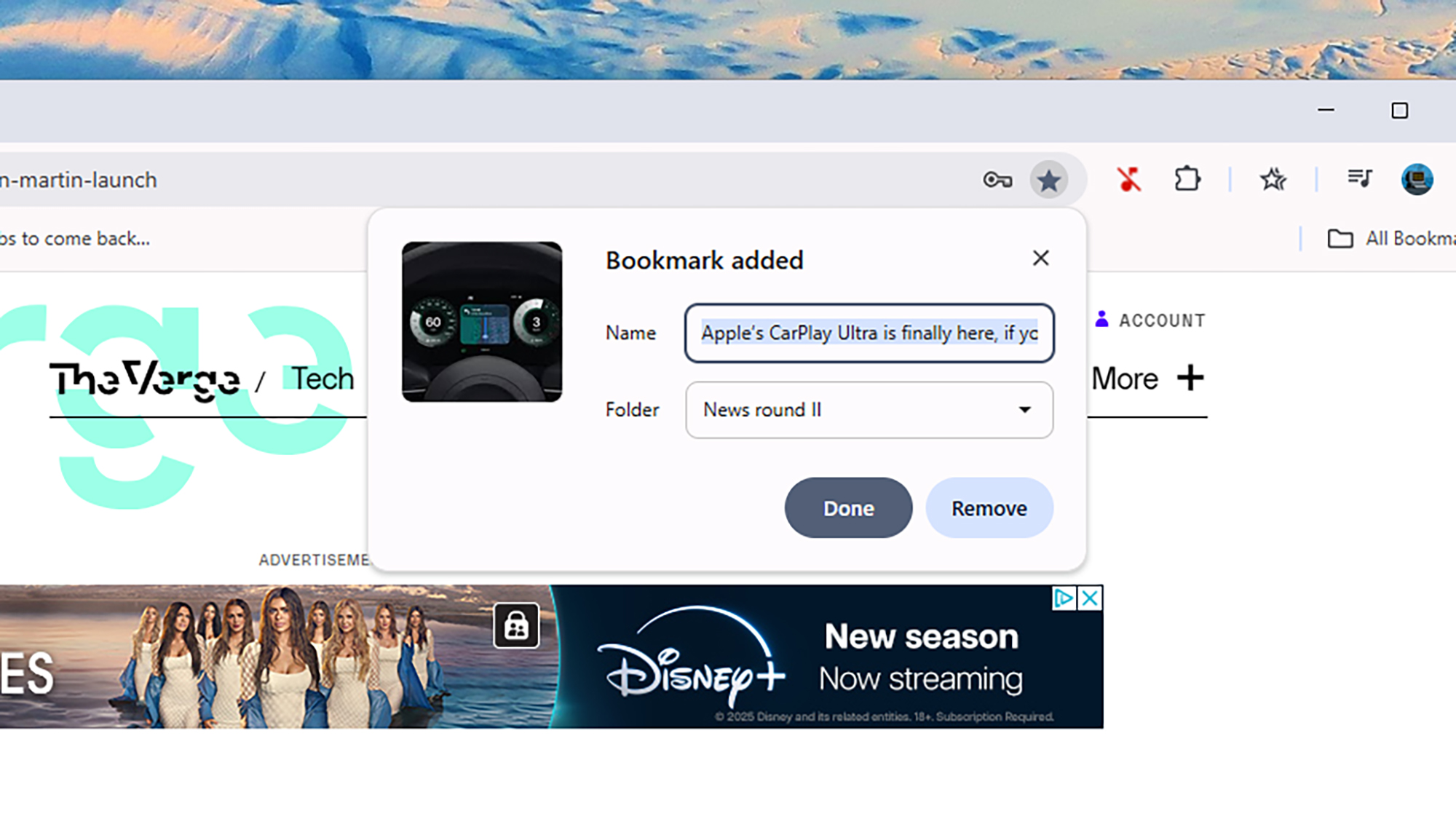
The star icon to the right of the address bar in Chrome on the desktop is for saving new bookmarks. Click it and the current page gets saved to the most recently used bookmarks folder. You can also press Ctrl+D (Windows) or Cmd+D (macOS), which is even easier. On mobile, tap the three dots at the top then the star icon (Android), or the three dots at the bottom then Add to bookmarks (iOS) to save the current page as a new bookmark.
As soon as a bookmark is saved, a small dialog pops up. You can use it to change the bookmark name and folder if you need to, or just click Done to move on.
More options can be found on the desktop by clicking the three dots (top right) then Bookmarks and lists. You’re able to add bookmarks from this menu, too, and there’s also a Bookmark all tabs option, which saves every open tab (which, like tab groups, is handy if you need to do something else but want to be able to get back to where you are).
On the same Bookmarks and lists menu you can toggle the bookmarks bar on and off. The bookmarks bar sits just below the address bar, and gives you another way to add bookmarks: drag the URL of the site you’re viewing down from the address bar to the bookmarks bar.

Bookmarks become a lot more useful when they’re well organized. On the desktop you can launch the full bookmarks manager by clicking Bookmarks on the bookmarks bar, or by clicking the three dots (top right) and then Bookmarks and Lists > Bookmark Manager. You can search through your bookmarks here, and create new folders: Click the three dots (top right), then Add new folder — and yes, you can put folders inside other folders. (This is also where you’ll find the Export feature, and it’s a good idea to export your bookmarks occasionally as a backup.)
Folders are a key part of keeping your bookmarks organized, and they’re all accessible on the left of the bookmarks manager page. Click and drag bookmarks to change their order, or to move them into different folders. Right-click on a folder to rename or delete it, or drag it on top of another folder to put it inside that folder.
You can double-click any bookmark to open it. To edit it, click the three dots to the right: You’re able to rename your bookmarks and change their URLs, as well as put them in different folders. If you right-click on a bookmarks folder, you get the option to open all the links it contains in separate tabs — which may not do your computer much good if there are dozens or hundreds of bookmarks in the folder.
The bookmark manager can be accessed on mobile too, though you don’t get quite as many options to play around with. Tap the three dots at the top (Android) or bottom (iOS) of the interface, then choose Bookmarks to see the list. As long as you’re signed in with your Google account, bookmarks will sync between your devices.
Doing more with bookmarks

There are other ways to work with your bookmarks in Chrome.
- Here’s a clever trick for your desktop bookmarks bar: right-click on each bookmark in turn, remove the text in the Name field completely each time, and click Save. You’ll then have a compact row of bookmark icons showing only the favicons for each site (such as a purple V for noti.group). It’s a neat way to put more bookmarks within each reach, and you can still tell what each one is.
- Something else you might want to try is to search through your bookmarks directly from the address bar. You may see some bookmark results suggested underneath as you type out your search query, and you can also force a bookmarks search by preceding your query with “@bookmarks” and a space.
- If you want to keep bookmarks visible at all times, that’s possible too. Click the three dots in Chrome for the desktop, then choose Bookmarks and lists > Show all bookmarks. A side panel appears displaying all your bookmarks: You can search through them, create new folders, and edit your bookmarks from here (click the three dots to the side).
- The icons in the top right corner, from left to right, let you change the order of the bookmark lists, switch between compact and visual views, and edit multiple bookmarks at once. You can shut down the panel with the X button, but if you click the pin button just next to it before you do, you get a dedicated bookmarks panel icon that stays permanently available on the Chrome toolbar, and will let you open it back up again.
This has hopefully given you some idea of what you can do with bookmarks in Google Chrome. And there’s more, so it might be worth it to take some time and look around. It’s not the most sophisticated of systems, but it does give you plenty of flexibility in terms of how you can use it and what’s possible, so you can get your folders and shortcuts set up in the ways that work best for you.
[Notigroup Newsroom in collaboration with other media outlets, with information from the following sources]