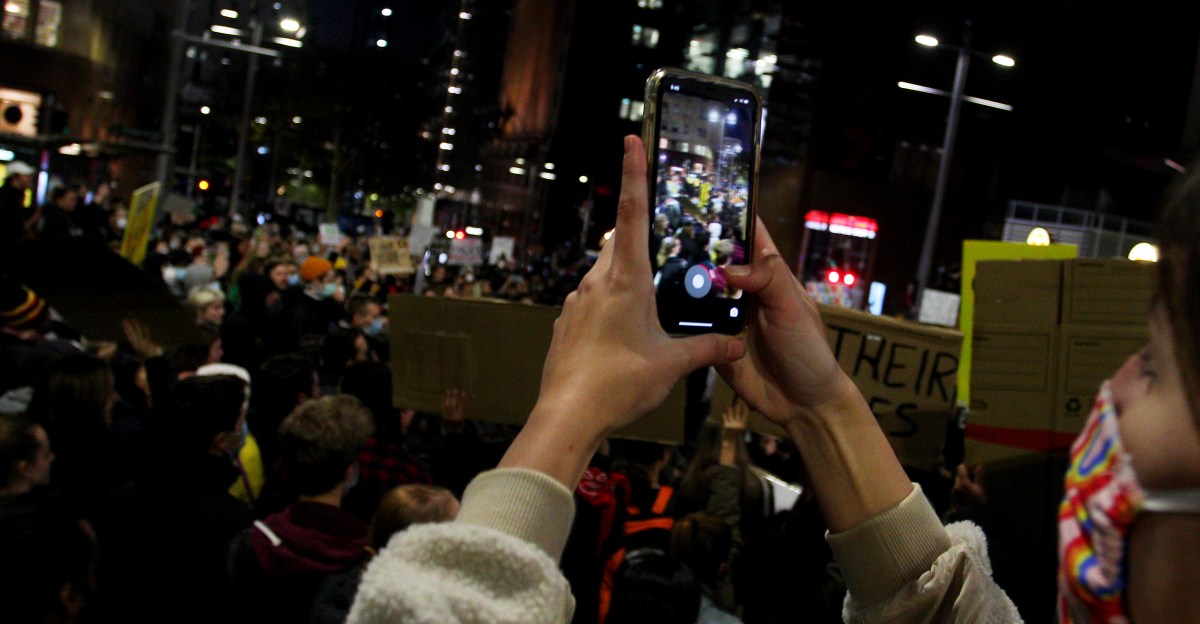
While showing up at a protest can demonstrate your opinion to the world, you may not want your face — or the faces of other protesters — to be included, especially when there is the possibility that authorities will collect and use that information (as they did for tracking movements during COVID-19 social distancing). As a result, many consider it vital to obscure the faces of people in any photos you may post on social media and other online sources.
What follows are some strategies for removing facial features from your photos. Of course, you can open up your images on a desktop or laptop using Photoshop or Preview to blur or scrub, but we’re going to assume you aren’t carrying around a laptop with you. So with mobile in mind, you still have some solid options.
When removing faces, you want to use a method that can’t be reversed. It is possible to de-blur a photo, especially using neural networks. It’s not possible to completely reverse the blurring, since it is lossy (in other words, some data will be permanently lost), but a lot can be “restored.” So why take the risk? Painting over faces, or using mosaic blur techniques, will prevent any possibility of reversing the effect.
You also want to remove any and all metadata from your images. They can carry GPS location, timestamps, and details about the type of phone used — basically, lots of things that can be used to pinpoint where you were and when.
While there are a plethora of apps that will help blur or cover faces and remove metadata for both iOS and Android devices (some of which I mention below), there are ways you can do both without using a third-party app.
First, you can use your built-in photo editor to individually block out faces. On iOS, open Photos, tap on your photo and select the Edit option (at the bottom of the screen). Tap on the Markup icon in the top right of the screen. With that, create solid circles or squares to block out faces. If you have an iPhone that’s series 15 or later with iOS 18.1 (or later), you can also use the Clean Up feature to erase a face: in the photo you want to change, tap Edit and then Clean Up (an eraser icon). Circle the faces you want to obscure, and tap Done.
Android also has a native markup tool — in the Photos app, select the photo, tap on the Edit tool (second from the left on the bottom) and choose Markup (second from the right on the bottom). You can then use the center-bottom Pen tool to scribble over anything you want to cover. You can also (if it’s available on your phone) use the Magic Eraser to erase or camouflage a face: tap on the Edit tool, select Magic Eraser, and circle the face you want to obscure.
You then want to get rid of the metadata. When you take a photo on your device, meta is going to be attached automatically. The easiest way to avoid this is to take screenshots of your photos so that meta and geotagging won’t carry over. Also make sure to view your photo fullscreen, and ensure you don’t have any notifications or other identifying features in the screenshot.
The same can be done for video. On an iPhone, instead of just using the Camera app, start a screen record while you’re making your video, and use that recording instead. On most Android phones, you can use the Screen record app found in your Quick Settings.
Third-party apps that hide faces & remove meta
Recently, there have been a plethora of apps that will help hide faces and remove metadata for both iOS and Android devices. You may find it easier to use one of these.
For example, encrypted messaging app Signal has a face-blurring tool that is incorporated into its Android and iOS versions.
There are also grassroots efforts like Image Scrubber, which you can use in a browser on your device to upload images to blur and scrub, and then to save the anonymous version back to your device. This is great because it works on all devices, mobile and desktop.
If you already use apps to edit and enhance photos, you might be able to use those to blur as well. Apps like Glitche (iOS) and Glitch Lab (Android) let you pixelate over selected areas, and Trigraphy (iOS) lets you create mosaic effects. If you want to take photos now and remove the meta later, you can use the apps mentioned above or photo apps like Halide (iOS) and Snapseed (Android).
In the end, the method you choose will depend on how much work you want to do during or after the fact. For me, I would take photos, edit them in the phone Photo app, take a screenshot — and then delete the originals. Because if your device is unlocked and you have the originals sitting there, then you may have done all that work for nothing.
Update February 26th, 2025: This article was originally published on June 5th, 2020, and has been updated to account for changes in software.
[Notigroup Newsroom in collaboration with other media outlets, with information from the following sources]