There’s a lot to explore in Google Maps, but you may not always know where to look. It’s great if you’re trying to drive through a crowded city or find out which local coffee shop has the best-rated bagels, but there are also other, lesser-known features worth investigating. These include historical imagery on Google Street View.
Google Maps actually makes it easy to switch between different time periods. On either desktop or mobile, you can go back to when Google’s Street View cars first started patrolling the streets — in some areas, you can go back as far as 2007 — and see how roads and places looked years ago.
So whether you have a practical purpose or just want to take a nostalgia trip, here’s how to go about it. These instructions apply to the latest versions of Google Maps for the web, Android, and iOS.
If you’re using Google Maps in a desktop browser, you can get to Street View by clicking anywhere on the map where Street View is available (which is most roads and famous landmarks), then clicking the Street View panel at the bottom. (It will look like a small square photo with a curved arrow.)
Alternatively, select a specific destination on the map, like a bar or park, to bring up its info panel — then either click the same Street View panel at the bottom or click Street View & 360° in the photo gallery on the pop-up. Both methods get you to the same place.
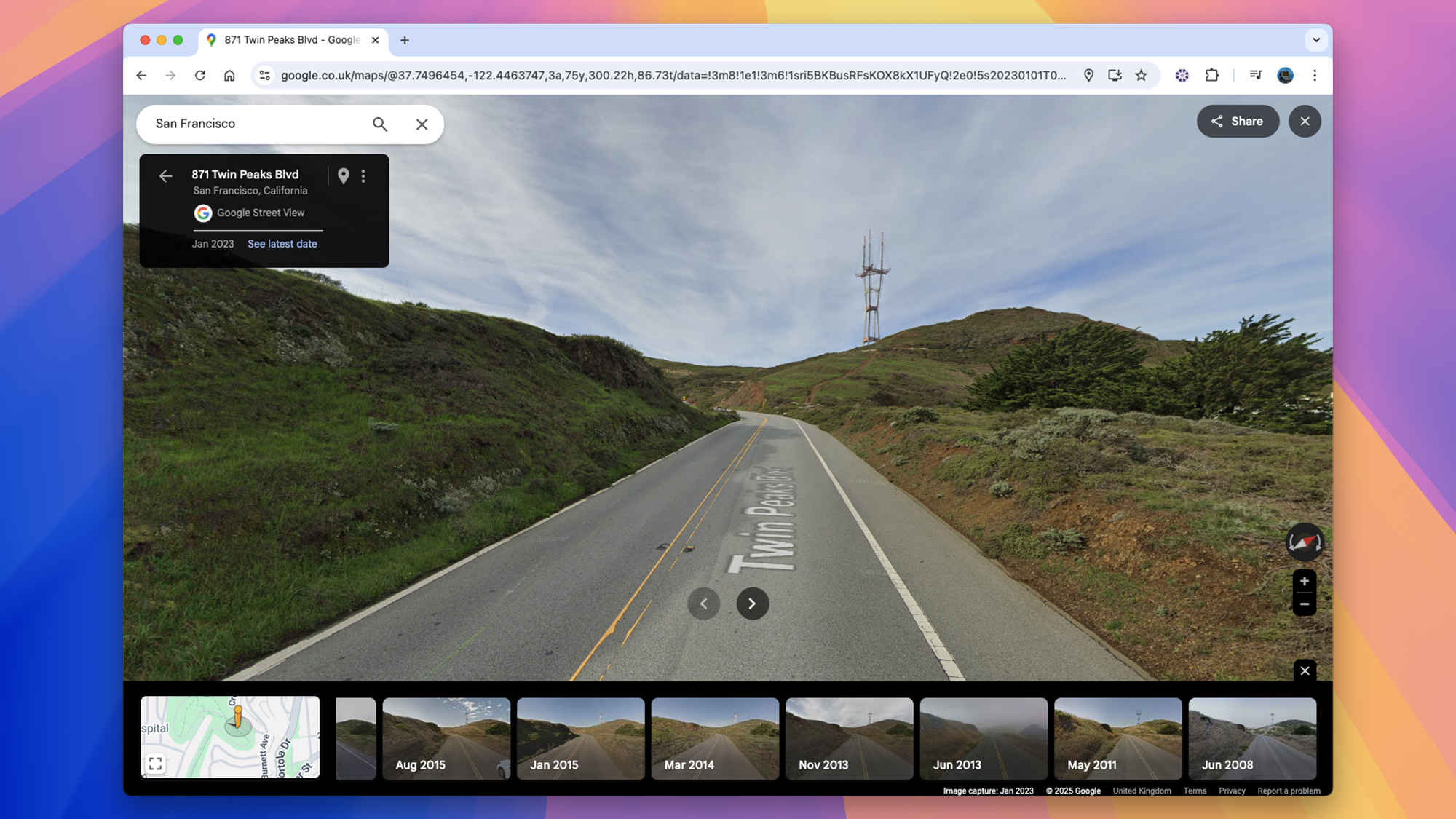
- If historical Street View imagery is available (and it isn’t everywhere), look for a See more dates link in the address box in the top left.
- Select this link to display a series of thumbnails along the bottom of the screen, labeled with all the available dates. Scroll right to see the oldest.
- Click any thumbnail to see the Street View pictures from that time. Click and drag on the pictures themselves to look around.
- You can still move around as normal by clicking on the arrows on the Street View images. If you navigate to a place where there isn’t any older imagery, you’ll be taken back to the most recent photos.
- If you want to move around any faster, you can click inside the mini map (lower left) and then click again on a specific point to jump to that place. Areas with Street View coverage are marked in blue.
- Click See latest date (top left) to go back to the most recent images in the Street View database.

If you’re using Google Maps on Android or iOS, then again you’ve got two ways to jump to Street View: you can tap and hold on any spot on the map, and if Street View imagery is available for it, a Street View photo appears in the lower-left corner of the map. (You may also get the same photo in the bottom half of the screen, depending on how your version of Google Maps is set up.) Either way, tap on that to get to Street View.
You can also tap on a labeled place name to bring up its info card, then choose Photos and Street View & 360° (if it appears) to get to Street View and start looking around.
- If imagery from other dates is available, you get a See more dates link at the bottom of the screen. Tap this to see the same selection of thumbnails as on the computer, labeled with the month and year. Tap any thumbnail to jump to it.
- Tap and drag on the screen to look around or tap on any of the onscreen arrows to navigate around the location you’re in.
- As on the desktop, if you move to a place that doesn’t have older photos, you’ll be taken back to the most recent imagery.
- You can also go back to the latest photos by tapping the left-most thumbnail in the date selection or by tapping the X in the top-left corner.
Historical satellite imagery in Google Earth

You can also explore historical satellite imagery using Google Earth. You can either use it on the web or get the apps for Android and iOS.
In the web interface, click the Activate historical imagery button in the top toolbar. (It looks like a globe with an arrow around it.) You then get a timeline of available imagery for the region you’re looking at: just click on a year to go back in time. You can also switch from Historial imagery to Timelapse using the button on the top left of the screen and choose how fast you want time to lapse.
With the mobile apps, you tap the layers button (two squares, top right), then toggle on Historical imagery. A pop-up on the bottom of the screen will show you the same timeline as you get on desktop, and you can travel backward and forward in time by dragging your finger along the timeline. If you want to do a timelapse, look for the icon showing a round backward arrow at the top of the pop-up.
Satellite imagery goes back as far as the 1970s in some parts of the world, but of course, as you go back through time, the image resolutions will get lower and lower, depending on the satellite technology available that year.
[Notigroup Newsroom in collaboration with other media outlets, with information from the following sources]